Home › Guides › PDF to piano roll
How to turn PDF sheet music into a falling-notes piano roll
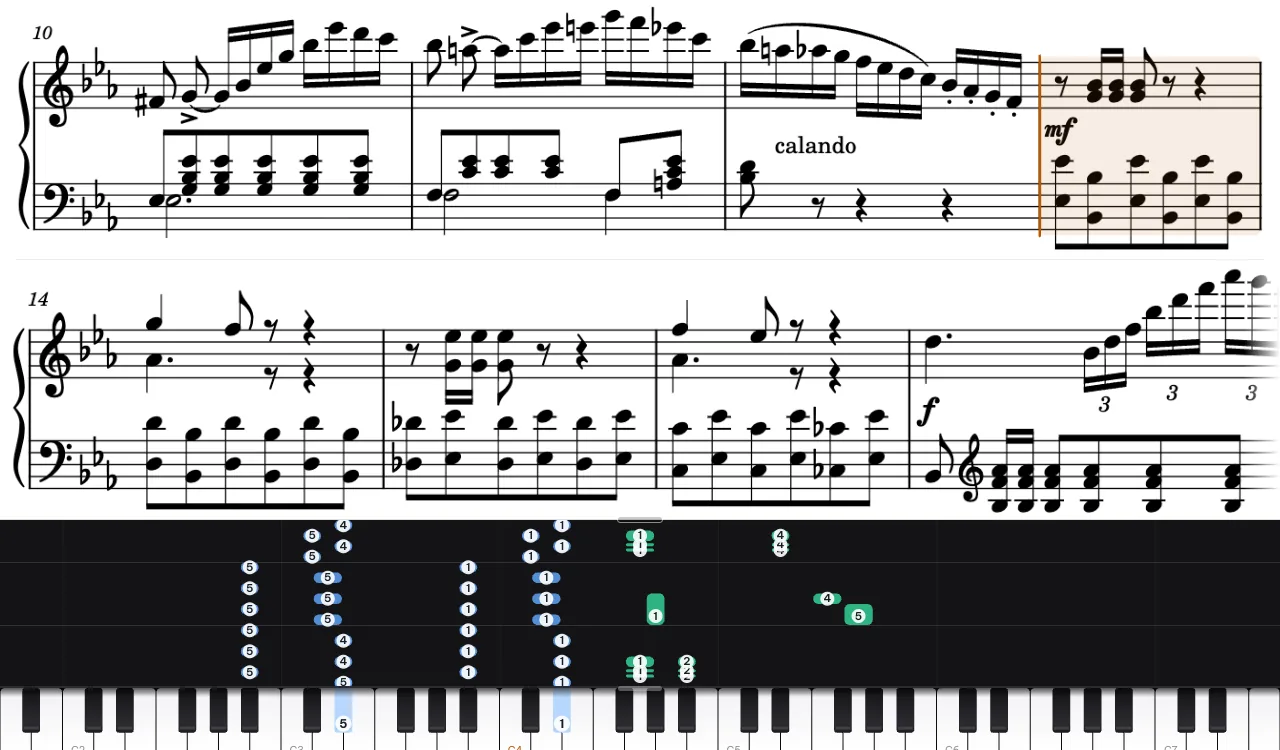
Falling notes show at a glance which key comes next and for how long; the score shows how the music is built. With a PDF score you get both on one screen: the line being played above the piano roll, both moving with the music.
Step by step
- Drop the PDF onto the page (or press + Add song). A PDF exported from notation software opens in a few seconds.
- Press play. The score's current line sits above the piano roll; in the settings you can show two lines, to read ahead, or whole pages side by side, which turn by themselves: a tablet on the music stand becomes a page turner.
- Jump around. Tap a bar of the score to go there; loop any bars to practise them.
What is read from the PDF
- Notes, rhythms, ties and both staves, so each hand gets its own colour.
- Repeats, first and second endings, D.C., D.S., Fine and Coda, played in the order the score asks.
- Tempo marks, ritardando and a tempo, fermatas, dynamics, arpeggios, grace notes, trills and pedal.
- Fingering numbers printed next to the notes, shown on the falling notes; the app suggests the missing ones.
- Chord names, falling with the notes; for a lead sheet with a melody and chords only, the app adds a simple left hand.
Scanned or photographed scores
A PDF made from a scan or photos has no notes inside, only a picture of them. It is read with optical music recognition (Audiveris), which takes longer and can misread a bar; the bars it is unsure of are outlined in red, and the editor opens right at them. A PDF exported from MuseScore, Sibelius, Finale or Dorico, or a MusicXML file, is always the more exact choice.
MusicXML and MIDI files open the same way. Use only scores you have the right to use.
Related guides
Have a score to learn?
Paste a link or drop a file, and see your piece as notes and a score.
Open the app